Lagomorph AI Plugin for Unreal Engine
Table of Contents
- Lagomorph AI Plugin for Unreal Engine
AI-driven 3D art generation directly in your Unreal Engine workflow. Create game-ready models from text and images in minutes.
Overview
Lagomorph empowers game developers with AI-driven 3D model generation. Generate game-ready assets directly within Unreal Engine using natural language or reference images, dramatically reducing iteration time from concept to implementation.
Key Features
Text to 3D Generation Describe models in natural language and generate game-ready assets instantly.
Image to 3D Conversion Upload concept art and transform it into fully realized 3D models.
Automatic Texturing Generate high-quality materials and textures automatically.
Game-Ready Output Optimized for real-time rendering with clean topology and efficient UV layouts.
Beta Status
The Lagomorph Unreal Engine Plugin is currently in Beta. We’re actively improving it based on community feedback. If you run into issues or have suggestions, reach out on Discord or email us at hello@lagomorph.ai.
Installation
Prerequisites
- Unreal Engine 5.6 or higher
- Active internet connection for AI processing
- Minimum 8GB RAM (recommended)
- Windows operating system
Installation Steps
Step 1: Install the Plugin
Visit the Fab store
Step 2: Enable the Plugin
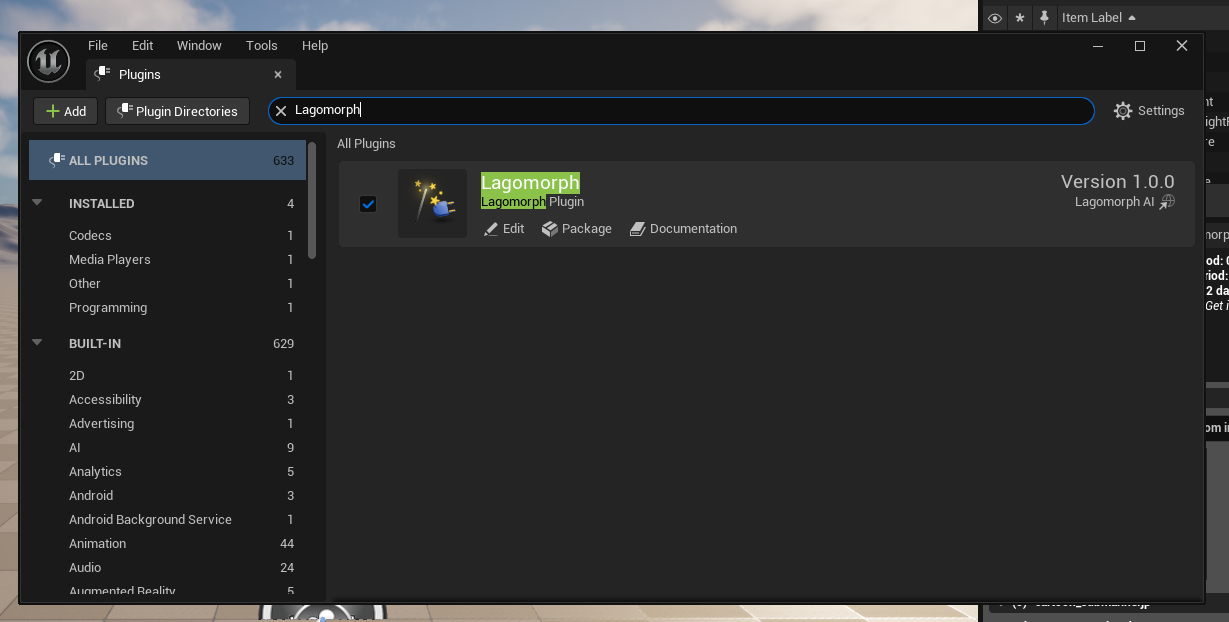
Step 3: Restart Unreal Engine
Close and restart Unreal Engine. The plugin will be automatically detected and loaded when the engine starts.
Step 4: Launch the Plugin
Open the Tools menu in Unreal Engine and select Lagomorph Plugin to launch the interface. 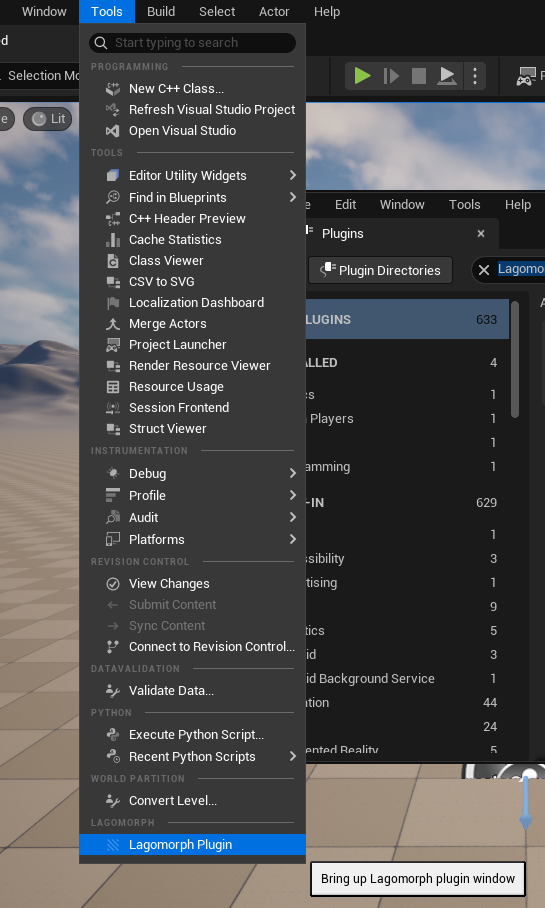
✅ Installation Complete
You’re now ready to start generating 3D models with Lagomorph AI. The plugin interface will appear as a dockable window in your Unreal Engine editor.
Quick Start Guide
Let’s create your first 3D model. This quick start will walk you through the basic workflow.
Creating Your First Model
- Open the Lagomorph Plugin from the Tools menu
- Enter a description of your desired model (e.g., “a medieval stone fountain”)
- Click the “Morph!” button to begin generation
- Wait for Lagomorph to process (typically 2-5 minutes)
- Review the generated results and import to your scene
⏱️ Processing Time
Generation time varies based on complexity and server load. Feel free to continue working on other aspects of your project while waiting. You’ll receive a notification when your model is ready.
Text to 3D Generation
Transform natural language descriptions into fully realized 3D models. This feature is ideal for rapid prototyping and exploring design variations.
Writing Effective Prompts
The quality of your generated models depends heavily on the clarity and specificity of your prompts. Be specific, include style direction, and specify materials for the best results.
For detailed prompt engineering tips, example prompts, and best practices, see the Prompt Engineering & Best Practices guide.
Image to 3D Conversion
Upload reference images or concept art to guide Lagomorph’s generation process. This feature is perfect when you have a visual reference but need a 3D implementation.
In Unreal Engine, upload your reference image through the Lagomorph Plugin interface and click “Morph!” to begin generation.
For complete guidance on supported image formats, best practices for reference images, and tips for great results, see the Image to 3D section in Features.
Materials & Textures
After your model is generated in Unreal Engine, you can request automatic material and texture generation through the Lagomorph Plugin interface.
For more information about how texture generation works, see the Materials & Textures section in Features.
Workflow
For a complete 6-step workflow from concept to implementation, see the Complete Workflow in Features. The Unreal Engine Plugin follows the same workflow, with the plugin interface handling model import automatically.
Best Practices
Unreal Engine-Specific Tips
- Queue multiple morphs at once to work in parallel
- Continue other development tasks while waiting for results
- Organize generated assets with clear naming conventions
For detailed prompt engineering tips, iteration strategies, and performance optimization advice, see Prompt Engineering & Best Practices in Features.
Tips & Tricks
💡 Pro Tip: Batch Generation
Generate multiple variations of the same object simultaneously. This gives you more options to choose from and helps identify the most effective prompts.
Common Workflows
Rapid Prototyping
Use Lagomorph to quickly populate your levels with placeholder assets. Generate variations of props, furniture, and environmental objects to establish the visual direction before final asset production.
Concept Exploration
Experiment with different visual styles by generating the same object with varied style descriptions. Compare results to inform your game’s art direction.
Reference Generation
Create reference models for your art team. Use Lagomorph to explore proportions, silhouettes, and design variations that can guide manual modeling efforts.
Troubleshooting
Plugin Not Appearing in Tools Menu
- Verify the plugin is installed in the correct Plugins folder
- Ensure you’ve restarted Unreal Engine after installation
- Check the Plugins window (Edit → Plugins) to confirm Lagomorph is enabled
Import Errors
- Ensure you have write permissions in your Content folder
- Verify sufficient disk space for asset import
- Check Unreal Engine’s Output Log for specific error messages
General Issues
For troubleshooting unexpected results, generation timing issues, and prompt refinement strategies, see the Troubleshooting section in Features.
Support
Need help or have questions? We’re here to assist!
- Email: hello@lagomorph.ai
- Discord Community: Join our Discord
- Documentation: https://docs.lagomorph.ai
Missing your favourite tool?
We want to make sure you can run Lagomorph on all your favourite platforms. Let us know where we should go next by emailing us or joining our Discord community!